
Passkeys vs. Passwords
Passkeys vs. Passwords, a reader asks…
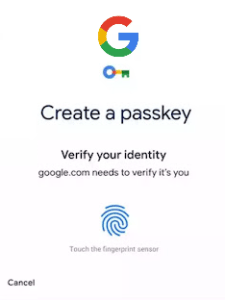
I’ve been seeing that websites now want me to add a passkey to my login. I use Gmail on my PC and on my iPhone. Every once in a while Chrome wants me to verify my identity, and asks me to create a passkey. Should I do this?
The short answer is yes, but read on.
Passkeys are a 2-factor authentication method we can use to verify our identity with websites and other entities. A passkey is something other than the username/email address and password that we’ve traditionally used to verify our identity online. That traditional method was never really secure, and hackers and scammers have compromised so many of us that responsible online entities have been pushing us to use 2-factor authentication to add an extra layer of online identity security.
Sometimes the passkey method is embedded in your web browser. This is fine if you only use one computer and one web browser. But most of us use at least two – a computer and a smartphone. If you’re not careful, you end up with passkeys stored on both devices, but they’re not synchronized. A further complication can result if you also have a partner (spouse or SO) and you both use the same online account, but have individual smartphones (and/or computers).

To help resolve this, there are many authentication apps available for your smartphone that you can use to display a passkey for a website. Some of them let you synchronize with the same app on multiple devices, such as the Google Authenticator. This app is available on both Android and Apple smartphones. You can install it from here. Since you use Gmail and Chrome, this may be your best option. There are many other options, including 3rd-party apps such as LastPass Authenticator, Microsoft Authenticator, and the authenticator built into your iPhone (in the Apple Passwords app).
A caveat here, the Apple Passwords app is specific to your individual Apple ID, which makes sharing passcodes more complicated. If you use Google Authenticator, both iPhones can use the same Gmail account to log in to the Authenticator, and passkeys created on one phone will be synchronized to the other.
In most cases, when you’re offered the option to create a passkey, the webpage displays a QR code that you can use to add the passkey to your authentication app. Depending on which authentication app you use, it may or may not synchronize to your Spouse’s or SO’s smartphone. If there’s no synchronization capability, here’s a tip:
If you want to share the passkey with your spouse or SO, both of you should create the passkey at the same time. When the QR code is displayed on your computer screen, both of you should add that to each phone’s authentication app. Then you’ll both see the same six-digit passcode displayed.

Passkeys can be generated in a number of ways, Microsoft has a handy chart that shows and explains the options here. That shows the most secure option is “passwordless”. This means your account is no longer secured by a username and password; it’s secured only by your username (or email address) and the passkey.
There’s a slight risk to this approach: if you lose your device, you might lose the passkey because it’s tied to that specific device. You shouldn’t rely on smartphone backups to store passkeys. For this reason, having the passkey on two devices is critical, as most online services won’t be able to restore your access if you lose it.
Adding a passkey or any 2-factor authentication method to your online accounts can be quite simple, but be sure to do this carefully to make sure you have a backup in case you lose your device.
This website runs on a patronage model. If you find my answers of value, please consider supporting me by sending any dollar amount via:

(@PosiTek)

(Support@PosiTek.net)

(using any credit card)
 Author: Chris Gardner
Your Tech Coach at PosiTek.net
Author: Chris Gardner
Your Tech Coach at PosiTek.net
There are currently 1299 reader comments on published articles, care to join in? Use the Leave a Comment form below/at the bottom of any existing comments. This is a good place to ask follow-on questions on this subject.




