
Screen Flashing Diagnosis

Screen Flashing Diagnosis: a reader asks…
I have a Windows 11 desktop PC that’s been running fine since I got it. It replaced an older Windows 10 CPU, and I reused the keyboard, mouse, Samsung monitor, webcam, and speakers. Just yesterday, the screen started going in and out, like the computer was powering down the monitor and then bringing it back up immediately. This happens several times a minute, but not in any pattern that I can tell. I’ve updated Windows and all the installed apps, and ran the SFC and DISM commands (from another of your helpful articles). Nothing seems to change this. Is it already time for a new PC?
Hmm, based on what you’re saying, I’m doubtful that the CPU or its component parts are failing here. You don’t list the monitor’s age, so my first guess is that is where the problem lies. Computer monitors last a long time, but they are consumer electronics that don’t last forever.
Before you run out and buy a new monitor, you should give these few things a quick check:
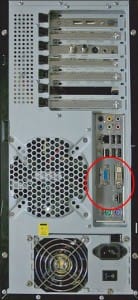
- Check the plugs on the back of the monitor. Unplug and replug each one (basically, the power cord and the HDMI cable). Turn the monitor off and back on.
- Check the HDMI cable connecting the monitor to the back of the CPU. Unplug it from the CPU, then plug it back in (make sure the HDMI cable is fully inserted into the jacks on both the back of the CPU and the back of the monitor).
- If you have access to another monitor (any size), try unplugging the HDMI cable from the original monitor and plugging it into the other monitor. See if you get the same issue.
- If your CPU is equipped with an add-on graphics adapter circuit board and you are fairly handy, you can power down the computer, unplug everything, and open the case. Inside, you’ll see the graphics adapter circuit board rising up from the motherboard. You can remove the retaining screw, unplug the circuit board from its slot on the motherboard, reinsert it into the same slot, replace the retaining screw, put the cover back on, and plug everything back in. Then start up the computer and see if you get the same issue.
There is a chance that the power plug or the HDMI plug is simply not making good contact. I’ve seen power cords that work themselves loose over time, and then are just barely plugged in. That could easily cause the random power blinking. If that’s your problem, an easy fix that costs nothing. Yay!
If it isn’t a plug problem, it’s something else. It’s likely you don’t have another monitor handy (and aren’t using an add-on graphics adapter). I just included those steps for the occasional reader who either has another desktop PC in the house or has a souped-up computer system. A replacement monitor need not be overly expensive. Look either online or at your local electronics store (Best Buy, Microcenter, Staples, Office Depot, etc.), buy a new monitor, and replace the existing monitor. You can then recycle the old monitor. If by chance it doesn’t, you can box up the new monitor and return it.
New monitors can cost from $80 to over $1,000. Unless you’re a gamer, video editor, or graphics designer, you likely only need a standard HD monitor. Look for 1080p (1920×1080) in the new monitor specifications. If it says 4k, 8k, etc., that’s likely overkill and a waste of money.
There is a very slight chance that the graphics adapter (an internal part of your CPU) has gone bad, but this most likely wouldn’t cause the behavior you’re describing. Failing graphics adapters generally show a jumping or jiggling screen. But if a replacement monitor didn’t resolve the issue, then you could purchase an add-on graphics adapter circuit board. Even if you’re currently using the built-in graphics, adding the add-on board will essentially replace the existing one.
I’m betting the simplest answers are the most likely. Either your power cable is loose, or your older computer monitor is failing. A little work or a replacement monitor will resolve your issue simply and cheaply.
This website runs on a patronage model. If you find my answers of value, please consider supporting me by sending any dollar amount via:

(@PosiTek)

(Support@PosiTek.net)

(using any credit card)
 Author: Chris Gardner
Your Tech Coach at PosiTek.net
Author: Chris Gardner
Your Tech Coach at PosiTek.net
There are currently 1299 reader comments on published articles, care to join in? Use the Leave a Comment form below/at the bottom of any existing comments. This is a good place to ask follow-on questions on this subject.




