Chkdsk, DISM, & SFC

Chkdisk, DISM, & SFC: a reader asks…
I have a Windows 11 system, and I run Windows Update often, installing updates ASAP. I also check for and update my Google Chrome browser and all other installed software monthly. I have automatic updates turned on everywhere, and I followed your advice to move my personal folders inside OneDrive, so they’re always backed up. If my system is still having problems, what else can I do or should I be doing?
Congratulations, you’re ahead of 90% of consumers by keeping your system up to date and your files backed up. When you run into problems with Windows operating system stability, there are three old command-line options you can run to make sure your operating system and file system are error-free. Errors in these can cause ongoing problems. These three have been around for a long time, but these days most people don’t even remember the old command-line method of managing their computers.
These three command-line items are: DISM (Deployment Image Servicing and Management), SFC (System File Checker), and Chkdsk (Check Disk). To use them, open a Command Prompt window as an Administrator. Here’s how to do that:
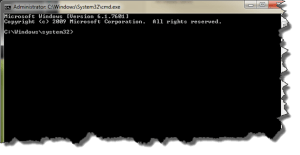
In the Windows 11 search box (bottom-left of the taskbar), type CMD. A window should pop open, and on the right side, you should see an option to “Run as Administrator” – click that to open a command-line prompt window which will show a blinking icon right after the Windows file system command-line (aka command prompt string), probably something like “C:/Windows/System32>”.
Once you have this window open, run each command one at a time. I suggest this order:
First, the DISM command. On that command line, type this string and press the Enter key on your keyboard:

DISM /online /cleanup-image /restorehealth
This will start a process that scans your entire operating system and hidden operating system image for errors and fixes them. Wait until you see “The restore operation completed successfully,” and the command prompt with a blinking cursor, which means it’s ready for another command. If you see any message indicating things were discovered and fixed, restart your computer before proceeding.
Second, the SFC command. On the command line, type this string and press the Enter key on your keyboard:

SFC /scannow
This will start a process that scans your critical and protected operating system files for errors and fixes them. Wait until you see the message “Windows Resource Protection did not find any integrity violations” and the command prompt with a blinking cursor, which means it’s ready for another command. If you see any message indicating that issues were found and fixed, restart your computer before proceeding, and then repeat the DISM command above, and the SFC command to make sure you see the message that it didn’t find anything to fix.

Third, the Chkdsk command. If you have solid-state drives, you likely don’t need to use this one, unless your system is throwing lots of errors. SSDs have built-in tools to identify and address internal problems. But if you do use it, the command syntax depends on how many internal hard drives you have, and it checks disk integrity and repairs the file system. For most people, there’s just one drive that contains the operating system and your personal files. In this case, your system will have to restart and will run the process after restarting, before Windows starts. To kick this off, type this string and press the Enter key on your keyboard:
Chkdsk /r
You’ll see a message asking if you would like to schedule the check the next time the system restarts. Type Y and press Enter. At this point, type Exit in the Command Prompt window and press Enter to close the window, then close any other open apps and restart your computer. The restart will take much longer than normal, and you’ll see Chkdsk running. Go have a cuppa coffee or do something else, as it can take minutes to hours, depending on your hard drive’s capacity and how much is in use.
When it’s done, it will have corrected any errors it finds on your hard drive, and your system will restart and show you the box to log into Windows (either password or PIN).
If you have more than one internal drive, you can reopen the Command Prompt window and repeat the Chkdsk command, specifying only the secondary drive (e.g., Chkdsk D: /r). However, you can run a much quicker check on any secondary drives using the “/scan” option (instead of /r), which performs a quick, high-level scan of the disk and reports any errors. Here’s a command (using the D: drive; you can change this to whatever letter you are using for the secondary internal drive(s)):
Chkdsk D: /scan
This won’t require a system restart, and it runs very quickly. The terminal screen will show lots of data, but scroll to the bottom; near the end, you should see the “Windows has scanned the drive and found no errors” message. If errors are reported, you can run the Chkdsk D: /r command to correct them.
For any of the three commands above, you can add “/?” after the command to see a list of available options. One last note: you may see a “Terminal (Admin)” menu item on your Start menu. That is for an alternative command prompt called Windows PowerShell, which has different commands and options. Don’t use that; use the “Command Prompt” option and run it as Administrator to use the above commands.
This website runs on a patronage model. If you find my answers of value, please consider supporting me by sending any dollar amount via:

(@PosiTek)

(Support@PosiTek.net)

(using any credit card)
 Author: Chris Gardner
Your Tech Coach at PosiTek.net
There are currently 1301 reader comments on published articles, care to join in? Use the Leave a Comment form below/at the bottom of any existing comments. This is a good place to ask follow-on questions on this subject.