
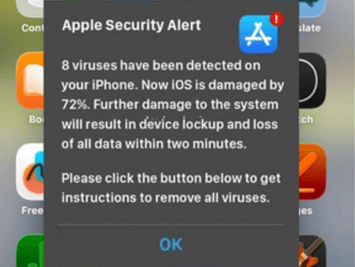
Fake iPhone Security Alert

Fake iPhone Security Alert: a reader asks…
I had this Apple Security Alert pop up on my iPhone, and I’m not sure what to do. I clicked the Ok button, and another thing popped up that said my iPhone was damaged by 72%, and when I tapped the OK link, there appeared a new popup with a red button to call for support. What should I do?
This is a scam, simple as that. No matter whether it comes as a text message, an email, or a pop-up on your computer or device, no reputable entity is going to ask you to call them to resolve an issue. Scammers use viruses, found money or accounts, lost or found shipments or physical goods, winnings for contests (which you did not enter), or anything else that you might think is important or valuable to entice you to respond. Do not respond.

In your case, the so-called security alert resulted from accidentally tapping a link in the Newsbreak app. Links can generate all kinds of things, including the pop-up you saw, and are absurdly easy for a scammer to create and distribute. When you clicked the OK button, it opened a specially crafted web page that included a button that, if clicked, would call the scammer and give them the opportunity to trick you into doing whatever they wanted. Usually, it’s to pay them to ‘fix’ your device or computer, or to give them remote control over your device (so they can further compromise you by accessing your stored passwords, accessing your online banking or credit card apps or website logins, copying your personal data stored on the device or computer, etc.).
Don’t fall for these scams! The hallmarks of such scams include urgency to take action and a way to contact them to help you fix the issue, collect the prize, etc. These scams are so common these days that your best bet is to treat any unsolicited communication to you with suspicion. Even emails that appear to come from your bank or another institution are often fake, especially if they urge you to act urgently and offer an easy way to contact them (within the message). Don’t! If you’re still unsure, use an independent way to contact the institution, not the way they gave you in the communication. For example,
- If it’s an institution you know and have a relationship with, independently call them using your established contact method – don’t use the displayed phone number or button that starts a call.
- For a device-specific issue, take a screenshot, then visit the company and show it to them (e.g., take your iPhone to an Apple store and show them the screenshot). Or, send the screenshot to someone you trust (like you did with your query to me, yay and thanks!).
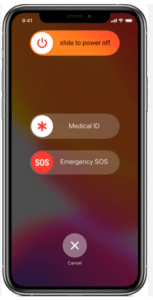
If you simply close the web browser (in your case, Safari on your iPhone), the bad web page may return when you next open Safari. Close that web page/tab. Sometimes, if it just won’t go away, you may have to shut down your device and restart it. For the iPhone, hold down the two buttons on either side until you see the ‘slide to power off’ slider, then slide it to shut down your iPhone. Wait a few seconds and then press and release the right-side button to restart your iPhone.
In your specific case, most likely you tapped on a link in the Newsbreak app, which might have happened even without you realizing you’d done that – touchscreens are easy to mistakenly tap.
At this point in time, all unsolicited communication should be viewed with a degree of suspicion, dare I say paranoia! Don’t fall for these scammers and their scams. If you’re not sure, take a screenshot and consult with a trusted digital security expert (hey, like me!).
This website runs on a patronage model. If you find my answers of value, please consider supporting me by sending any dollar amount via:

(@PosiTek)

(Support@PosiTek.net)

(using any credit card)
 Author: Chris Gardner
Your Tech Coach at PosiTek.net
Author: Chris Gardner
Your Tech Coach at PosiTek.net There are currently 1295 reader comments on published articles, care to join in? Use the Leave a Comment form below/at the bottom of any existing comments. This is a good place to ask follow-on questions on this subject.




