
Ad Blocking Fix

Ad Blocking Fix: A reader asks…
I have a Windows 11 PC (fully updated) and use Malwarebytes Premium as well as the free Malwarebytes Browser Guard as you suggest. I use Google Chrome to browse the web, but sometimes also DuckDuckGo (when I want privacy). Everything works great, although occasionally I visit websites that tell me to disable ad blocking. Sometimes a website doesn’t work with ad blocking turned on, and sometimes it acts kind of funky, such as YouTube. How do I disable ad blocking for a website?
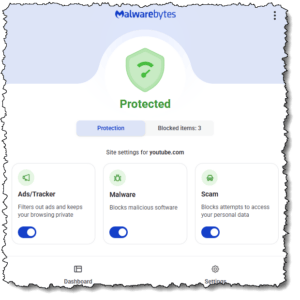
When you’re using Chrome and looking at a website where you want to disable ad blocking, cast your gaze upward in the browser window to the window toolbar. Near the top-right of the window, you should see the stylized “M” icon, to the right of where you type in a URL. Click that, and a pop-up will appear with three sliders. The left-most slider is for Ads & Trackers – slide that to Off. That’s it, Malwarebytes will remember the setting for that website, and allow ads and tracking when you’re on that website.
If you don’t see the Malwarebytes Browser Guard icon in your browser window, click the puzzle icon (except in DuckDuckGo, which doesn’t use browser extensions), and a list of your installed browser extensions will pop up. Click the grey pushpin icon for the Malwarebytes extension to change it from grey (not showing) to blue (with a line through it, which means it shows).
YouTube.com does work a little funky in most browsers when you have ad blocking turned on, but I think it’s manageable. What you do is wait a few seconds after the playback is interrupted (by an ad) until the “Skip” link appears. Click that and your video will continue playing. For longer videos, you may have to do this more than once. Sometimes, an ad is shown before the video starts, so you have to wait until you see the Skip link to bypass it. But this brings up another issue:
Most websites that don’t charge you for access (e.g., a “Paywall”) subsist on advertising. By blocking ads from showing, you are denying the website owner (or, in the case of YouTube videos, the video creator) the (mostly minuscule) revenue from you reading their website or watching their video. For example, this article you’re reading has a few embedded adverts that generate a fraction of a penny every time someone views the page – unless they have an ad blocker turned on. The revenue from these ads helps defray my costs to host this website.

When using DuckDuckGo, you can’t install extensions, including both the Malwarebytes Browser Guard and any 3rd party password managers you might use. DuckDuckGo has good ad blocking and protection from bad websites, trackers, cookies, and annoying popups. This is what makes it so popular as a web browser alternative to mainstream browsers like Chrome, Edge, Safari, etc. It is the one browser that is best at protecting your privacy, but it might be overkill for many users and general use.
It’s worth checking DuckDuckGo’s settings, particularly if you’re worried about privacy. In addition to turning on any protections that aren’t already on by default, you’ll want to go to the Data Clearing section and check the box to Auto-clear tabs and browsing data when you exit DuckDuckGo. It can also be handy to look at the YouTube Ad Blocking settings – if you use the DuckDuckGo player in YouTube, you can avoid the advert delays. I find that it works very well, at least at this point. Who knows what Google (owner of YouTube) will do to circumvent this capability in the future?
But for now, whenever I’m watching a YouTube video, I use DuckDuckGo and its built-in player. I know I’m denying video creators a small bit of revenue, but I feel intrusive ads are overly annoying (which is why I keep the ads on this website as innocuous as possible). I hope that at some point, the internet will figure out a better, less annoying way for creators (like me) to earn revenue.
This website runs on a patronage model. If you find my answers of value, please consider supporting me by sending any dollar amount via:

(@PosiTek)

(Support@PosiTek.net)

(using any credit card)
 Author: Chris Gardner
Your Tech Coach at PosiTek.net
Author: Chris Gardner
Your Tech Coach at PosiTek.net
There are currently 1299 reader comments on published articles, care to join in? Use the Leave a Comment form below/at the bottom of any existing comments. This is a good place to ask follow-on questions on this subject.




