
Crashed Hard Drive Options?

Crashed Hard Drive Options? A reader asked…
My ASUS Windows 10 computer died last Sunday while I was on a Zoom call. I didn’t have my charger, and the battery died. After plugging it back in, I tried the power button, but nothing happened. I took it to a computer repair shop (and also bought a new computer, as the old one was six years old). The shop claims they couldn’t transfer my personal data to the new computer, citing that the hard drive was damaged, and advised me to find a drive recovery company. Do you have any suggestions?
Firstly, recognize that recovering data from a crashed hard drive can be pretty expensive, and there are no guarantees that you’ll get any usable personal data from the exercise. You’re paying for the company’s work effort to recover data on the hard drive, but they may not be able to recover anything. It’s a gamble, and you need to balance the potential cost (from $500 to well over $1,500 or more) against the value of your personal data. For businesses, that is a different calculation than for home users who want to recover photos and other personal data. The value judgement is up to you.
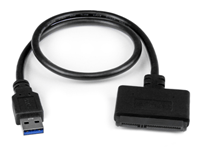
Secondly, it is possible that the hard drive itself isn’t damaged, just the interface inside the old computer. I would suggest you have the shop return the computer to you, or better yet, just the internal hard drive. You can purchase a low-cost SATA to USB adapter (here’s one for $16 on Amazon) and connect the hard drive to your new computer. If the drive isn’t damaged, it will appear in File Explorer, and you can copy files from the old hard drive into your personal folders on the new computer. If the drive isn’t visible, Windows has software repair tools that may be able to repair the drive enough to retrieve your files. If not, you’re only out $15 (compared to paying someone else to try this or other recovery techniques).
If the hard drive is truly dead and nothing on it is recoverable (at a reasonable cost), then you should investigate to see if at least some of your personal data exists elsewhere. This can be on your smartphone or tablet, on another computer, on an old backup drive you may have used, or on a cloud-based file storage medium (such as Dropbox, Google Drive, iCloud Drive, or Microsoft OneDrive).
Let’s talk about the new computer – since you were devastated by the loss of your personal data when your old computer’s hard drive crashed, you certainly want to avoid a repeat in the future, right? Here’s where two complementary processes can help:

First: Back up your computer regularly. This can be pretty simple. Assuming your new computer has Windows 11, you can purchase a budget-friendly external storage drive (like this one for $80 from Amazon), plug it into your new computer, and open “File History” to enable this feature (use the Windows search bar and type ‘File History’). Open that and you’ll see a button to turn on File History. Click that and let it run in the background. It might take hours to complete, but whenever it’s done, you can unplug the drive and put it away.

Then, every so often (daily, weekly, monthly, quarterly, etc.), you can plug the drive back into your computer and the backup will get updated automatically. When you’re not backing up, leave the drive unconnected. If your computer ever develops a problem, you have a backup of your files that you can either restore to another computer or use to fix your computer. On that same File History window at the bottom-left, you’ll see both a ‘Recovery’ link and a ‘System Image Backup’ link. Use the former to recover files from your backup, use the latter to create a system image that you can use to repair your computer if Windows gets damaged.
Why not keep it plugged in all the time? If something goes wrong with your computer or you get hacked, the effects could easily extend to any connected device. By keeping your backup device offline except when being used, you’re keeping your data safe.
Second: Consider using a cloud-based file storage capability. If you have a subscription to Microsoft 365, you already have such a capability in OneDrive. I have an excellent article to help you set this up, keeping all your personal files both on your computer and in the cloud on OneDrive. See https://positek.net/ms-onedrive-tip/ – written for Windows 10 but works the same way on Windows 11 as well. Alternatives include the aforementioned Dropbox, Google Drive, iCloud Drive, etc. It’s possible that you already have one or more accounts with one of these companies that provides cloud-based file storage, and you may only need to pay a small subscription fee to increase the space allocation to fit your needs.
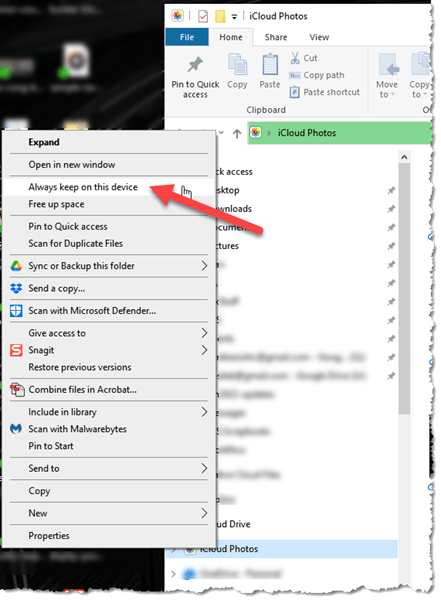
If your computer is a laptop or a low-cost desktop PC, your internal hard drive may not be large enough to hold all your files. This is where something like OneDrive can help – you can store the files in the cloud, and only download files you need to your computer when you need them. That feature is built into Windows 11 and called either ‘Always keep on this device’ or ‘Free up Space’.
This is accessed by right-clicking on a folder in File Explorer, which brings up a context-sensitive menu; that feature is a menu item. Choose ‘Free Up Space’ for each of your personal folders if your hard drive is too small to fit everything, or choose ‘Always keep on this device’ if your hard drive is large enough. Either way, all your files will show in File Explorer and can be opened with a double-click.
Using cloud-based storage is not quite the same as a regular backup. Generally, your cloud-based storage solution will delete a file from all locations when you initiate deletion from any device. Some, like Microsoft 365’s OneDrive, have a 30-day recycle bin for recovery, while others don’t.
Another benefit of storing your files in a cloud-based system is that you can then access them from other computers or devices. For example, your smartphone. Both iOS and Android have apps for all the major cloud-based storage solutions.
Why have both backup and cloud-based file storage? For safety and convenience! The cloud-based file storage ensures your files are always available quickly and wherever you need them. The backup is for recovering from a disaster, such as when your cloud-based file storage files were accidentally deleted and you let too much time slip by before trying to retrieve them from the recycle bin. Or, if you were hacked and the hacker encrypted the contents of your hard drive and cloud-based files (e.g., a ‘ransomware’ attack). It’s a relatively low-cost form of insurance against loss (of your personal data), and well worth the minimal amount of money and time for you to set it up.
I think that keeping your personal data safe is of critical importance to you. If you’ve read this far, I think you’ll agree that you need to do something. There are many other possible solutions available on the internet, and the ones I’ve outlined above are relatively inexpensive and straightforward to implement, making them great options for most people. Other solutions may work for you as well or better; it’s worth doing a bit of research to find the right solution for your particular situation. Don’t let a computer crash destroy your precious memories, your critical personal data, or your digital life.
This website runs on a patronage model. If you find my answers of value, please consider supporting me by sending any dollar amount via:

(@PosiTek)

(Support@PosiTek.net)

(using any credit card)





