
iPhone Messages in iCloud?

iPhone Messages in iCloud? A reader asks…
On my iPhone (14 Pro), I got a new pop-up in the Messages app, asking me to “Turn on Messages in iCloud”. I’m not sure if I should do this. Can you tell me what this does and if I should do it or not? I don’t have a Mac, but I do use an iPad and my Apple watch. And finally, if I store my messages in iCloud, can I trust Apple to keep them secure?
This message may have come about during a recent update to your iPhone’s iOS. In the past, default settings for the Messages app were geared toward people using text messaging on a single device, your iPhone. So your message history, all the text message conversations you see on your iPhone, were stored in the memory of the iPhone only. And yes, while that was included in the Backup to iCloud that your iPhone does automatically, that backup is only intended for restoring that iPhone, or transferring content to a new iPhone – again, a single device.

These days, most of us are using multiple devices. So one by one, Apple has been providing a separate ‘live’ storage capability for things we use. This is true for photos, files (in your iCloud Drive), passwords, notes, email, and more. You can control this in Settings > Apple Account, iCloud+, and more > iCloud > scroll down to the “Saved to iCloud” section and tap “See All.” These separate storage containers hold the items you use frequently and likely want to access on all your Apple devices. This utility makes it easier.
The answer to your second question is yes – turn on Messages in iCloud. That way, you’ll see the same message history on both your iPhone and iPad – any Apple device that has the Messages app. You won’t be able to see that on a computer when you log into your Apple ID at https://icloud.com, though. Apple hasn’t yet built that capability into iCloud on the web.
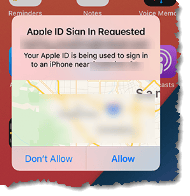
If you’re concerned about security, your Apple account and all the data that’s in it (including your Messages history) are all secured the same way. To gain access to it, someone would need your unlocked iPhone, as that’s the trusted device that prompts a multi-factor authentication screen anytime you (or anyone) attempts to log into your Apple ID from anywhere. You’ve probably seen that pop-up from time to time, which resembles a map with an “Allow” and “Don’t Allow” button.
The data that’s in your iCloud account is secured with the best encryption available. That data is also encrypted when it’s being transferred from one place to another, such as when synchronizing your iPhone, iPad, and watch, or any other device you use to access the data. You’ve been trusting this security all along with your iCloud Drive files, your email, your photos, and your passwords (saved in the Apple Passwords app), so why wouldn’t you trust it for your Messages history?
That said, you should continue to be concerned with anything new that comes across your iPhone, iPad, or any other computing device you use. Hackers are always trying to fool people into compromising their security, and they count on our ignorance of how our own devices work. That’s not a putdown; we all only know a fraction of what our devices are capable of doing. Certainly, the pop-up you saw in your Messages app isn’t something you see all the time, so it’s good to be suspicious about it.
This website runs on a patronage model. If you find my answers of value, please consider supporting me by sending any dollar amount via:

(@PosiTek)

(Support@PosiTek.net)

(using any credit card)





