
Lost Access to My Facebook

Lost Access to My Facebook! a reader asks…
Help! I lost access to my Facebook account when I switched to a new iPhone. I had setup 2-factor authentication on my iPhone (using the Microsoft Authenticator app). I traded my phone for a new one, and used the iCloud restore feature to put all my stuff on the new phone, but my authenticator didn’t come back! Now when I try to access Facebook on my computer or anywhere, it asks for an authentication code from my authorized device, which I no longer have. My email address and password haven’t changed. What can I do about this, is my account lost forever?
Generally similar to my previous article about Facebook users whose accounts have been hacked, you have to use Facebook’s account recovery procedure in order to regain access to your account. Facebook has changed their screens, so this article has the current screenshot of the Account Recovery webpage.

This process can take three weeks or longer, and perserverence is the key here. Remember, you don’t pay Facebook anything for the service, so you really are at their mercy to provide support. Always be nice and civil, and thankful to anyone who reaches out to you. First, you need to visit the Facebook account recovery page. The article URL is:
You should carefully read this article and follow the instructions they’ve laid out. Start by clicking the link on the page “I can’t access the email or mobile number on my account” and you’ll be presented with a list where you tell Facebook what happened. You won’t find your problem there, so click on the last entry “I don’t see the right option on this list” and click the Continue button.

A few notes on someone’s experience that made the process go smoother:
- Go through the process on the mobile app versus on a desktop computer,
- When entering in your phone number, include the country code and use dashes for the area code and number (example: +1 123-456-7890), and
- Look for the “Identity confirmation in progress” notification, that tells you that your efforts were successful.
Carefully read each of the screens to make sure you’re following the instructions exactly. You’ll be providing some proof of your identity such as a picture of your driver’s license or other governement-issued ID, the email address, password and phone number associated with your Facebook account – whatever they ask for. You’ll have to wait for them to validate your information, which could take days or weeks. They may send you several emails which you should also read and carefully follow instructions. When they’ve completed the validation process, they’ll send you a link to get back into your account.
If you don’t see progress on your account recovery (e.g., emails from Facebook), You should re-try the procedure from the beginning. Stick with it, and there’s a good chance that you’ll eventually regain access to your account.
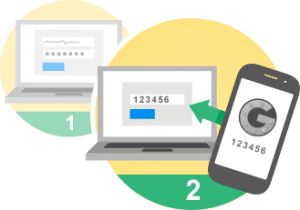
Once you’ve regained access to your account, you’ll want to disable the existing multi-factor authentication feature, and then re-enable it with your new device (better yet, two devices). While the Microsoft Authenticator is fine to use, I only use that for authentication for my Microsoft account (and have several backup methods enabled as well). You want to use an Authenticator app that backs up independently – you can’t trust iCloud (which is an Apple product/service) to reliably backup and restore non-Apple products and services.
I should mention that your Microsoft account does have a procedure you can follow to recover your MFA codes, by installing the Microsoft Authenticator on the new iPhone and then following the exact instructions Microsoft provides (in this support article). However, this has proven to be not reliable as it also uses iCloud to store your credentials and it’s too easy to mess this up (and Microsoft can’t help you).
MFA codes are always device-specific. You should always have them stored on a backup device as well as your iPhone. Don’t trust any device-specific backup and restore methods (like iCloud on your iPhone) to cover your MFA codes. Oh, and most MFA services (including Facebook) do let you generate one or more single-use emergency recovery codes which you can use if you do lose your device, but you have to a) save those someplace separate from your device, and b) be able to get to them when needed. I have these emergency recovery codes for all my MFA accounts in a safe but accessible (to me!) place.

I note that you use Gmail, so I’m guessing you secure your Google account either with another Google app or with the Google Authenticator app. I like using the Google Authenticator app because the Authentication codes in it are stored in your Google account and recoverable separately from your device. I also highly recommend you also enable the 2-factor authentication for your MFA-secured accounts on more than one physical device. That way if you lose one, you don’t lose access and can then reset authentication easily with a replacement device.
For any online account that offers MFA, you should use it. That said, make sure all your account information is kept up-to-date, create and save backup code(s), create as many recovery or alternative verification methods as the online entity allows, and setup the same MFA on multiple devices (if you have an iPhone and iPad for example).
I hope this helps you regain access to your Facebook account – just remember to be tenacious and courteous to anyone who helps you in this process – goodwill goes a long way!
This website runs on a patronage model. If you find my answers of value, please consider supporting me by sending any dollar amount via:

(@PosiTek)

(Support@PosiTek.net)

(using any credit card)





