
Microsoft Authenticator Warning

Microsoft Authenticator Warning, a reader asks…
I use a Windows 11 computer with a subscription to MS 365. I also have the Microsoft Authenticator on my iPhone, which uses passkeys instead of passwords to my Microsoft account. Every once in a while I get a notification on my phone to approve access to my Microsoft account. I’m sure this comes from my computer, and am guessing this is Microsoft occasionally asking for revalidation. That’s all ok, but I also use the Microsoft Authenticator for managing other password-protected accounts. I got an email from Microsoft saying they’re discontinuing this service. Is that a scam or for real?
First off, congratulations on moving your Microsoft account from a username/password to a passkey. This is much more secure, and your Microsoft account (including everything in OneDrive) is much safer from hackers. That said, the email you received is valid. Microsoft is discontinuing general password management in the Authenticator app. This is part of the IT industry’s push to move everyone away from passwords and towards passkeys.
For any reader who uses the Microsoft Authenticator for password management, you only have until August 1st 2025 to switch to another password manager.

Please note that passkeys (both passwordless and 6-digit MFA codes) will still be supported on the Microsoft Authenticator. For anyone still fuzzy on the difference between passwords and passkeys: a password is part of something you know (your username or email and password). A passkey is something you have (e.g., a device or authenticator app on your device that verifies your identity). Usually a passkey is tied to your device biometrics – FaceID or TouchID on iOS devices or Windows Hello on a PC. Once you try to access an online account which is secured with a passkey, you have to open your authenticator and either approve the access or read the code to type into an authentication box.
When you set up a passkey in your Microsoft account, you are also given a one-time-use code for emergencies, such as if you lose your smartphone (and hence, your passkey). Be sure to keep this one-time-use code safe and where you can get to it if you lose your smartphone. Should you have to use this, be sure to reset the passkey in the Microsoft Authenticator on your replacement smartphone and generate a new emergency code.
Now onto the password manager built into Microsoft Authenticator: That feature ends on August 1st, but the passwords that it has are actually saved to your Microsoft account. Those passwords are accessible in the built-in password manager in Microsoft Edge. However, the passwords won’t be usable on your iPhone unless you install the Edge browser app.
Of course, Microsoft would love for you to use their browser and their built-in password manager, but it won’t be integrated with anything else, just Edge. To use the password manager, you’d have to access it from Edge anytime you need a password for anything outside of Edge. Other brands of web browsers (Google Chrome, Mozilla Firefox, Apple Safari, etc.) also have built-in password managers. I’ve never been a fan of the password managers that are built into any web browser (except for Apple’s password manager, which is a standalone app, but also integrated with Safari). Instead, I prefer using a separate password manager that I can use with any web browser and across all platforms.

You didn’t mention this, but your iPhone has its own password manager (now an app called Passwords), and you don’t say whether you’re using this as well as the password manager in the Microsoft Authenticator, or if you’re using another 3rd party password manager (1Password, LastPass, KeyPass, etc.).
You can choose any password manager you want, but unless you use Microsoft Edge on all your devices/computers, you’ll have to export your passwords from it, and then import those passwords into whichever one you choose to use. PC Magazine has a recent review of password managers (see https://www.pcmag.com/picks/the-best-password-managers) and any one of them will work fine. Personally, I use NordPass.
To export your passwords that are saved in your Microsoft account, you don’t do this in the Microsoft Authenticator app, but from within Microsoft Edge on your Windows 11 PC. In Edge, click the 3 horizontal dots at the top-right of the window, which opens a drop-down menu. Click the menu item “Passwords”, which opens a tab to show you a list of all your saved passwords in your Microsoft account. Click the 3 horizontal dots at the top-right of this listing, and select Export Passwords. You’ll need to confirm this on a popup, and then you’ll be presented with a File Explorer window where you can decide where to save the export file. This file will be a Microsoft Excel Comma Separated Values (*.csv) file. Save the file, and then you can import that into your chosen password manager.
What complicates your situation is that you have an Apple iPhone, which has its own password manager, separate from the Microsoft Authenticator. It’s quite possible you also have some passwords saved to the Apple password manager. You should check to make sure those are also in your chosen password manager. Personally, I like to keep both the iPhone Passwords app and NordPass synchronized, which I do by saving any new account credentials I create to both the apps.
If you’d like to simplify, you can use just the Apple Passwords app – there’s a web browser extension you can get for that to install in Edge, Chrome, Firefox, etc. on your PC. Then you only have one password manager to deal with. Simpler is better.
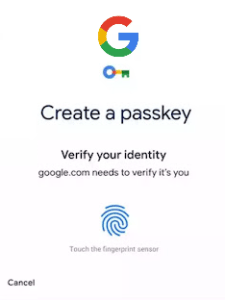
On that note, more and more online entities are moving from username/password and past the older 2-factor authentication to “passwordless”. Microsoft has already done this for you, your Microsoft account access gives you a popup on your iPhone to either tap an Approve button or pick a displayed number to verify your identity when logging into your account on another device. Some online entities will require you to use their authentication app, others will let you use whichever one you want. I’m hopeful this situation will mature and we’ll be able to use a single authenticator app for everything.
This website runs on a patronage model. If you find my answers of value, please consider supporting me by sending any dollar amount via:

(@PosiTek)

(Support@PosiTek.net)

(using any credit card)





