
Unwanted Gmail AI Help
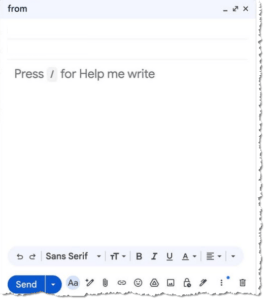
Unwanted Gmail AI Help: a reader asks…
I use Gmail and recently a new text show up in my Compose window. it says “Press / for Help me write”. If I start typing my email it disappears, but shows on all new emails I start. Is there a way to get rid of it?
Google’s version of Artificial Intelligence (AI) is called Gemini, and Google is rolling out Gemini-integrated features to all its platforms. What you’re seeing is Gemini offering to help you draft your email. The text is grey versus black, meaning it’s just a placeholder for whatever you type (same as the word “Recipients” in the To: line or “Subject” in the subject line).
Here’s the thing – you don’t pay Google any money to use Gmail, right? So that means they can make any changes they like to the app, and you often don’t get a say or a way to turn off a feature. That said, it’s possible that you signed up for Google AI Pro, which gives you the tightly integrated Gemini offering to help you write your emails, among other things. Google AI Pro is free for the first month, then costs $19.99/month thereafter.
If you inadvertently signed up for Google AI Pro and don’t want it, visit your Google Account’s payments and subscriptions page, go to Manage Subscriptions, and cancel that subscription.
You can also turn off some or all of the smart features in Gmail. Visit your settings page by clicking the gear icon in Gmail, then click “See all settings”, and scroll down the General tab page to turn off smart features like:
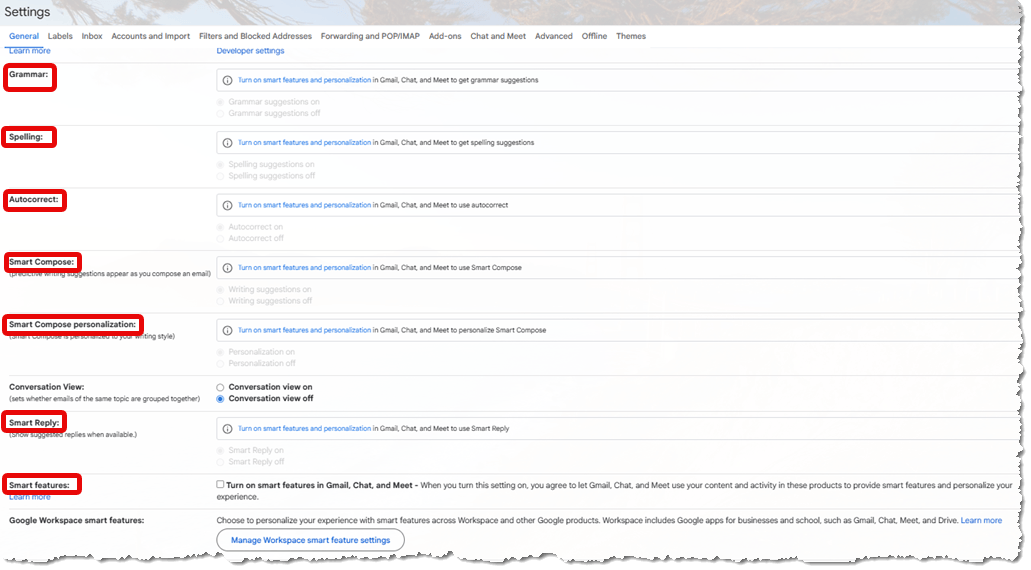
- Grammer suggestions
- Spelling suggestions
- Autocorrect
- Smart Compose > Writing suggestions
- Smart Compose Personalization
- Smart Reply
- Smart features > smart features in Gmail, Chat, and Meet
- Google Workspace smart features (if you use Google Workspace)
Google isn’t the only one doing this; Microsoft has built its AI “Copilot” into both Windows 11 and Microsoft 365. The difference here, though, is that because you are paying Microsoft, you can turn these features off.
All that said, the current iterations of AI, whether you use ChatGPT, Gemini, Copilot, Perplexity, etc., can be useful. If Gemini offers to help you draft emails, you can give it some general guidance (aka “prompting”), and it might generate a draft you can edit. It can potentially save you time writing.
Everybody in tech is looking for ways to exploit and use AI. My biggest warning is to not take AI output at face value; double-check all facts against valid sources. And don’t just use AI-generated words, consider that a rough draft for what you want to write, and make it your own before you send off that email.
This website runs on a patronage model. If you find my answers of value, please consider supporting me by sending any dollar amount via:

(@PosiTek)

(Support@PosiTek.net)

(using any credit card)
 Author: Chris Gardner
Your Tech Coach at PosiTek.net
Author: Chris Gardner
Your Tech Coach at PosiTek.net There are currently 1295 reader comments on published articles, care to join in? Use the Leave a Comment form below/at the bottom of any existing comments. This is a good place to ask follow-on questions on this subject.





Thanks for a useful post! I tried turning off smart features to get rid of unwanted AI prompts. Unfortunately, that also turned off the email sorting that underpins gmail “tabs” (such as priority, promotions, social media, updates). I find these really useful so I turned on smart features to get them back. Is it possible to turn off the AI while keeping the tabs?
Glad you’re finding this information useful!
Unfortunately, Google uses AI in all its ‘smart features’. You can limit what smart features you use by going down each setting once you’ve turned it back on. Here are those (all in Gmail>Settings>All Settings):
Under the General tab: Grammar, Spelling, Autocorrect, Smart Compose, Smart Compose Personalization, Smart Reply, Package Tracking, and the option in Desktop Notifications for Important mail notifications.
Under the Inbox tab: Categories (your gmail tabs), Importance Markers, and Filtered Email options.
Turning off Smart Compose, Smart Compose Personalization and Smart Reply should get rid of the unwanted AI prompts (at least most of them).
I should mention that using Gmail tabs (aka “categories,” which segregate your incoming email into up to five categories) requires Google’s AI to read your mail and determine where each email should be placed. And Google’s EULA gives them wide latitude on what they do with that information. Personally, I’m against the idea of AI (or anyone other than myself) reading my mail.
One last note, every time Google updates their Gmail interface, they can (and often do) re-enable features you might have turned off, so it is worth checking your settings from time to time to make sure what you’ve previously set is still…set.