
Windows 11 Hiding Notification Icons

Windows 11 Hiding Notification Icons: a reader asks…
I recently upgraded my computer to Windows 11. I take your advice and always show all icons in the notification tray (bottom-right of the screen). This was easy to set in Windows 10, but with Windows 11, new icons get hidden automatically. Even icons I’ve previously set to show get hidden when they’re updated. I have to go into the Windows Taskbar settings menu and individually switch each hidden icon back to show. This is annoying as hell. Is there a way to keep all my notification icons showing always?
For Windows 11, Microsoft likely ordered their engineers to preserve taskbar space (presumably for ads and such), and removed the capability to show all icons easily as it was in Windows 10. Whenever you see the little up-caret to the left of your notification icons, you have to right-click the taskbar, choose Taskbar Settings, expand Other System Tray Icons, and then scroll down to the slider for any icons that are not showing. I agree, it’s annoying!
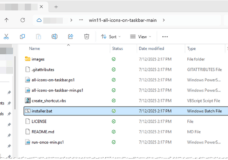
There is a workaround, but it’s a little geeky. A Reddit thread (read it here) from user liub0myr links to this on GitHub: https://github.com/Liub0myr/win11-all-icons-on-taskbar. There’s a green “<> Code” button near the top that you click to download a zip file (say, to your Downloads folder). In File Explorer, right-click on that zipfile and choose Extract All from the menu. That creates another folder. Inside that folder (nested), you’ll see a file called installer.bat. Double-click that file to install the fix.
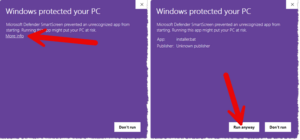
But Microsoft is going to try to stop you, popping up a “Windows Protected your PC” box. The only button showing is a “Don’t run” button. In smaller type above is a “More info” link, which you have to click on to reveal a “Run Anyway” button. Click on that button to install this fix.
I examined the code in the installer.bat file and also ran it through various malware detection engines. It is safe to use (despite Microsoft’s warning). This adds two small items to your user profile that do the same thing you used to get in Windows 10 with a simple slider control – Show All Icons. As the GitHub article says, you can run the installation.bat file again, and it will reverse the change it made to your system.
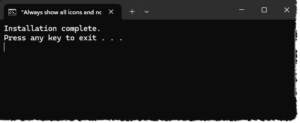
It runs very quickly, and you’ll see a small screen that says “Installation complete. Press any key to exit…”. Press your Enter key, and the little window disappears. That’s all there is to it; from this point forward, all your notification tray icons will continue showing at least until Microsoft decides to change their code to disable the capability to do this workaround.
This website runs on a patronage model. If you find my answers of value, please consider supporting me by sending any dollar amount via:

(@PosiTek)

(Support@PosiTek.net)

(using any credit card)
 Author: Chris Gardner
Your Tech Coach at PosiTek.net
Author: Chris Gardner
Your Tech Coach at PosiTek.net
There are currently 1299 reader comments on published articles, care to join in? Use the Leave a Comment form below/at the bottom of any existing comments. This is a good place to ask follow-on questions on this subject.




