
Windows 11 Start Menu Shortcuts
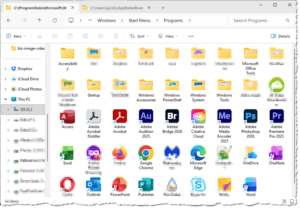
Windows 11 Start Menu Shortcuts: a reader asks…
I’ve been wondering about this for a while. Where are the shortcuts for my start menu items? I know I can pin menu items to my Start menu and also to my Taskbar. However, if I want to create a shortcut on my desktop to a program that’s on my Start menu, there doesn’t seem to be a way to do so in Windows 11. Can you point me in the right direction?
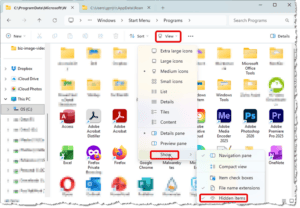
Certainly! For Windows 11 Home and Pro installations, the start menu items are in your file system. To see them, you’ll need to open the File Explorer app. Before you can view them, you need to make a change in the options for that app. Tap the menu item “View”, and hover over the last item “Show”, which reveals a sub-menu. On that sub-menu, click “Hidden items”.
Once you can see hidden items, you can navigate to one of these places on your hard drive:
- C:\ProgramData\Microsoft\Windows\Start Menu\Programs\
- C:\Users\[your user account]\AppData\Roaming\Microsoft\Windows\Start Menu\Programs\
When you’re looking at either of these folders, you should see icons for your Start Menu items. If you make the File Explorer window small enough so you can see your desktop screen around it, you can then create shortcuts on your desktop to any of those menu items by doing the following:
- Using your right mouse button, click and hold it over the program icon,
- drag that icon off the File Explorer window and onto your desktop, and
- let go of the right-mouse button. A menu appears where you’ll click the “Create Shortcuts here” menu option.
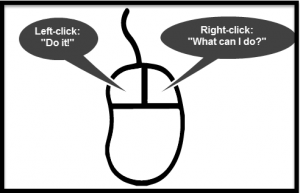
You can rename the shortcut if you prefer, move it around, or do other customizations. In case you’re not familiar with the right-click function, think of it as a “what can I do with this?” button. Right-clicking on something opens a menu of things you can do with that item, whether it’s an icon, your desktop screen, or most anything on the toolbar. Conversely, the left mouse button is a “do it” button, which either selects the item or performs the action you clicked on a menu.
You can also select items by clicking and holding the left-mouse button and dragging from one corner of the area to the opposite corner (making a square or rectangle) and everything inside that box is selected. For example, you can select multiple items on your desktop by drawing a box around the items. Another way is to hold down your ctrl key while you’re clicking on each item you want to select.
While you’re looking at the File Explorer applet’s menu (View > Show), you should also check the item on that sub-menu “File Name Extensions” so when you’re looking at files you can see the extension which defines the type of file when showing a list of files. This can come in handy when you’re looking for a specific type of file.
This website runs on a patronage model. If you find my answers of value, please consider supporting me by sending any dollar amount via:

(@PosiTek)

(Support@PosiTek.net)

(using any credit card)
 Author: Chris Gardner
Your Tech Coach at PosiTek.net
Author: Chris Gardner
Your Tech Coach at PosiTek.net
There are currently 1299 reader comments on published articles, care to join in? Use the Leave a Comment form below/at the bottom of any existing comments. This is a good place to ask follow-on questions on this subject.




